Member and employer online accounts will be unavailable on Sunday, October 11 between 6:00 a.m. and 8:00 a.m. to allow for scheduled system maintenance.

Setting up Added Security to Your Employer Account
Follow the steps below to enable added security on your account.
Already have an account?
Use your current Username and Password and follow the steps below.
Don't have an account?
Contact your PEPP Employer Relations Coordinators (ERCs) to have your account set up.
Once your ERCs have provided you with your Username and temporary password, follow the steps below.
If you don't already have an authenticator app, download one before you begin these steps.
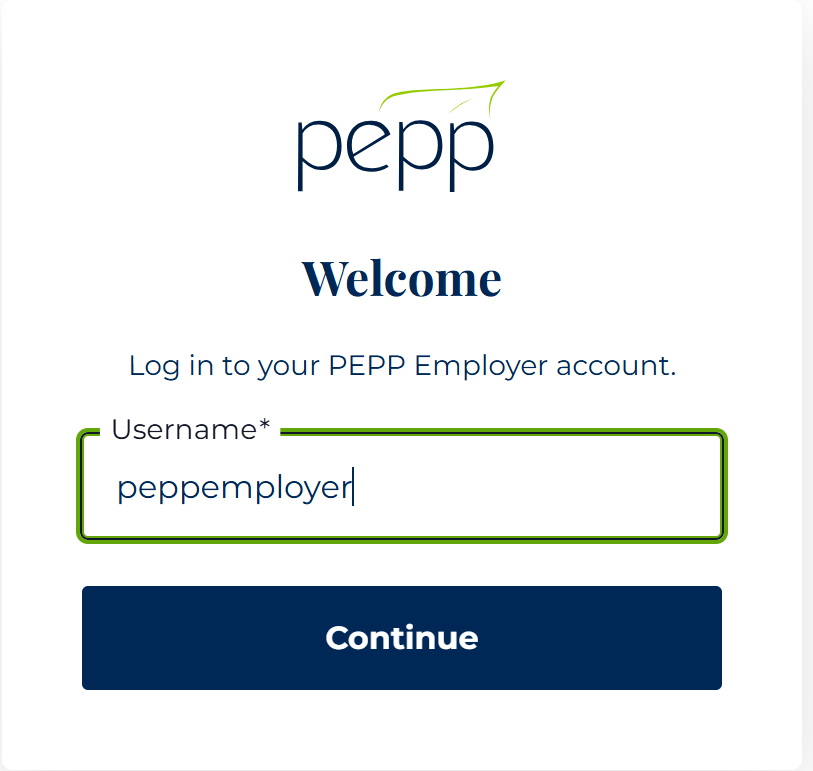
Step 1
Enter your your Username, then click Continue.
Step 2
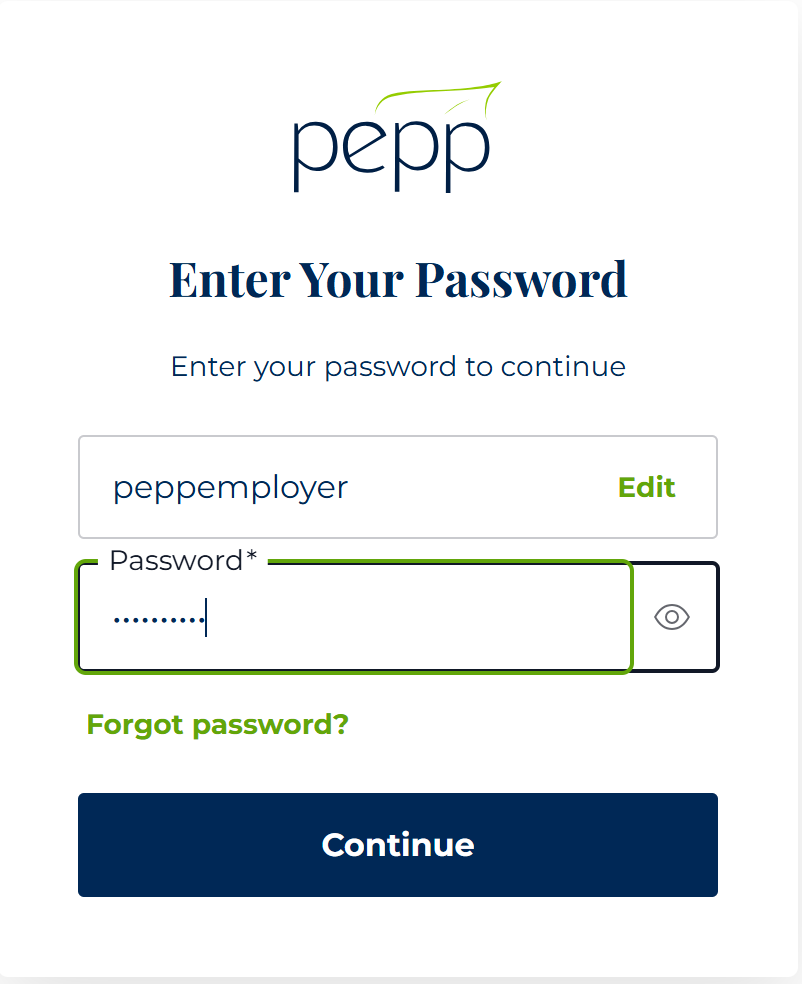
Enter your your Password, then click Continue.
Tip, if you mistyped your username in the previous step, hit Edit to correct your username.
Step 3
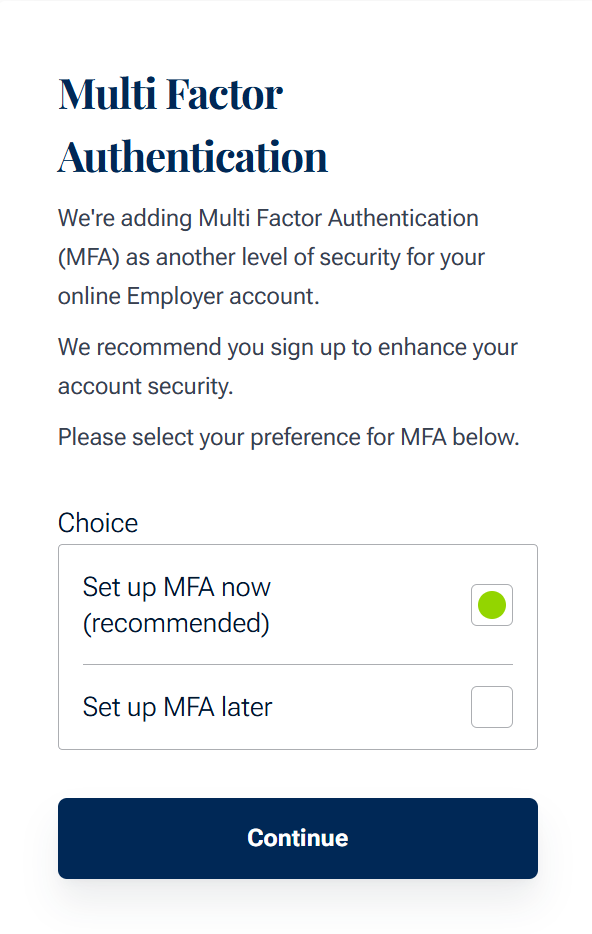
Select whether you want to set up multi-factor authentication now or later. We recommend setting it up now.
Step 4a - Add Code to Authenticator by Scanning QR Code
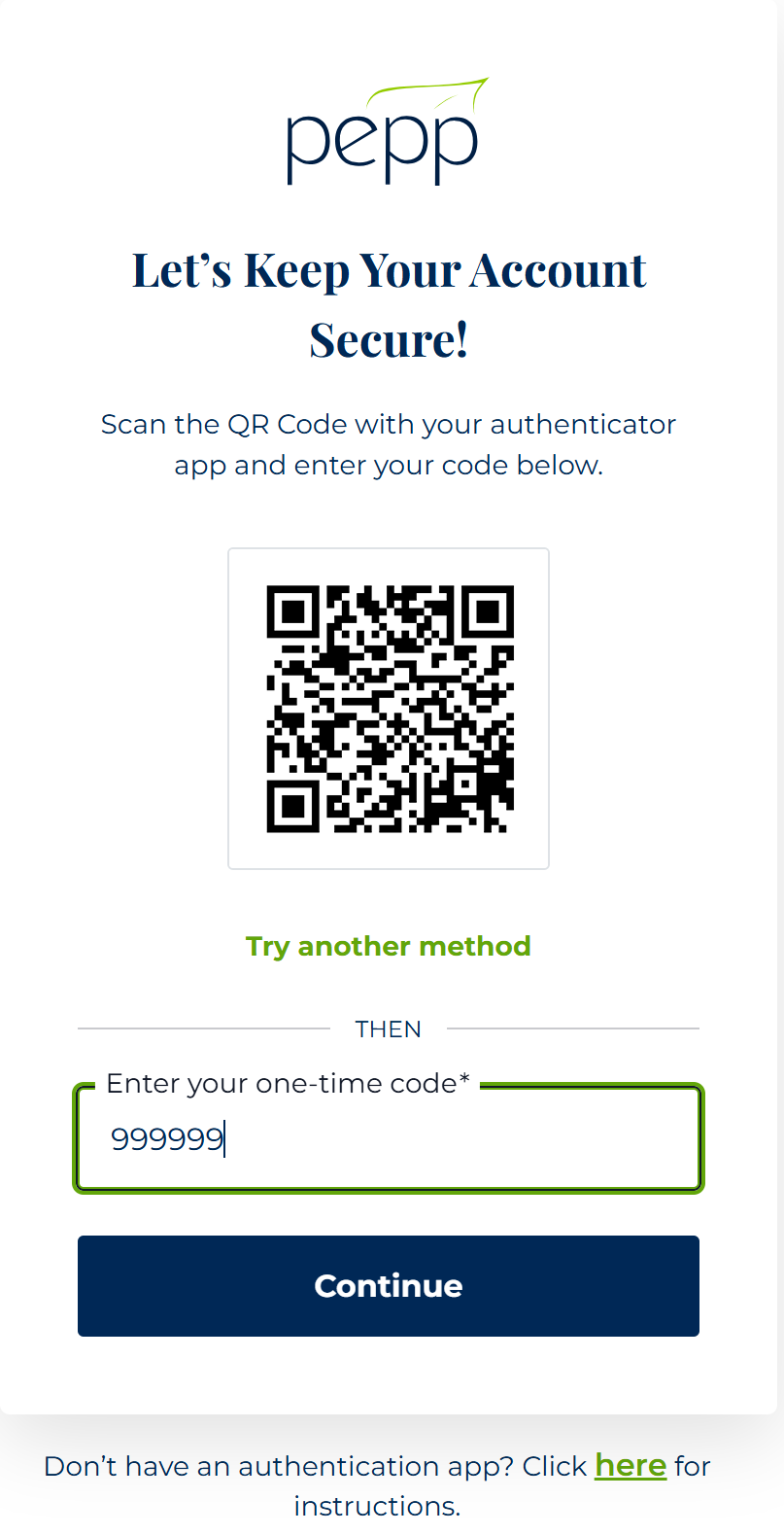
This step requires a camera on your device.
Scan the QR code with your authenticator app and enter the 6-digit number, then click Continue.
If your device does not have a camera, click the "Try another method" link and skip to the next step.
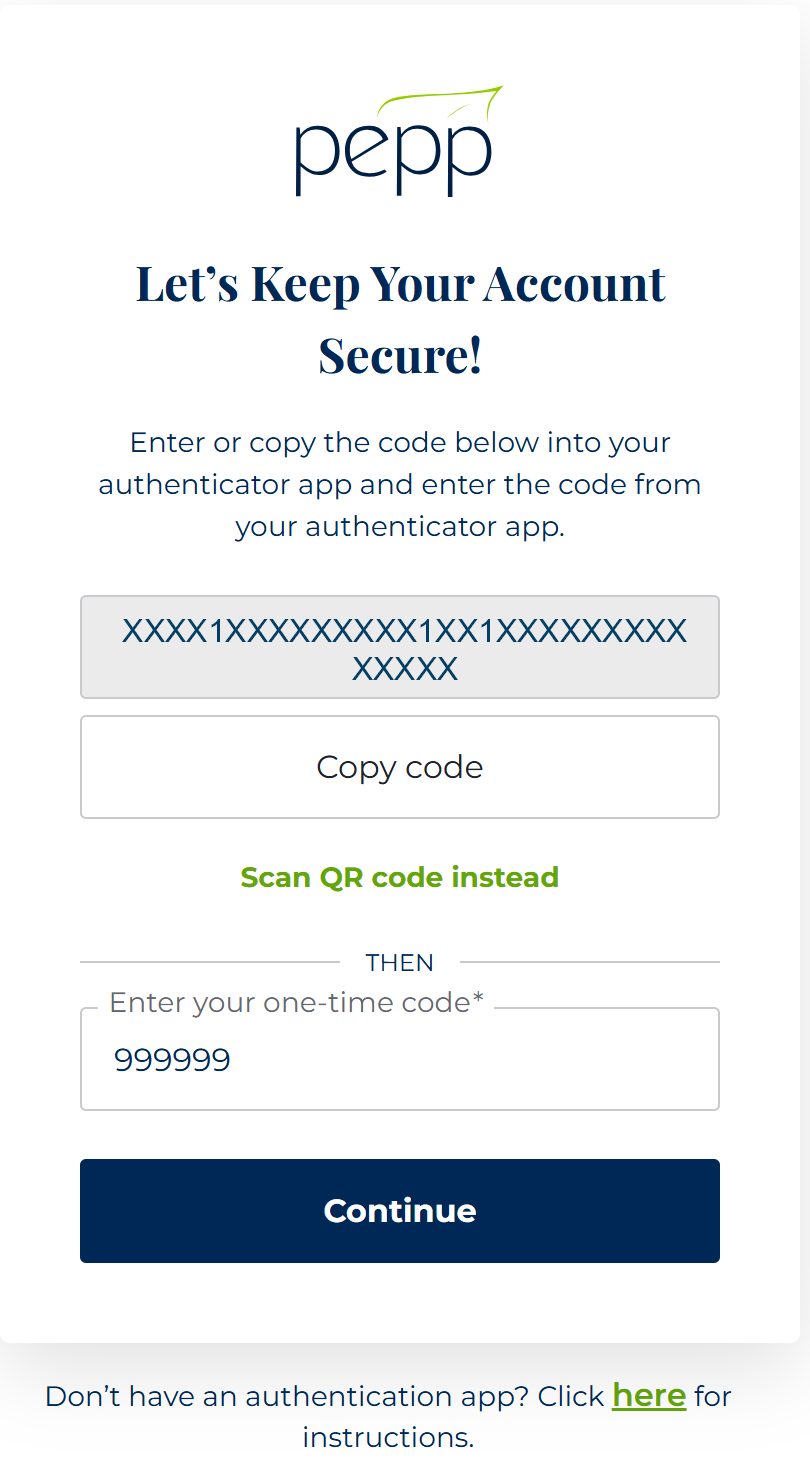
Step 4b - Add Code to Authenticator Manually
If you scanned the QR code successfully, you can skip this step.
Copy or enter the code provided into your authenticator app. Then enter the 6-digit number from your authenticator app, then click Continue.
Success!
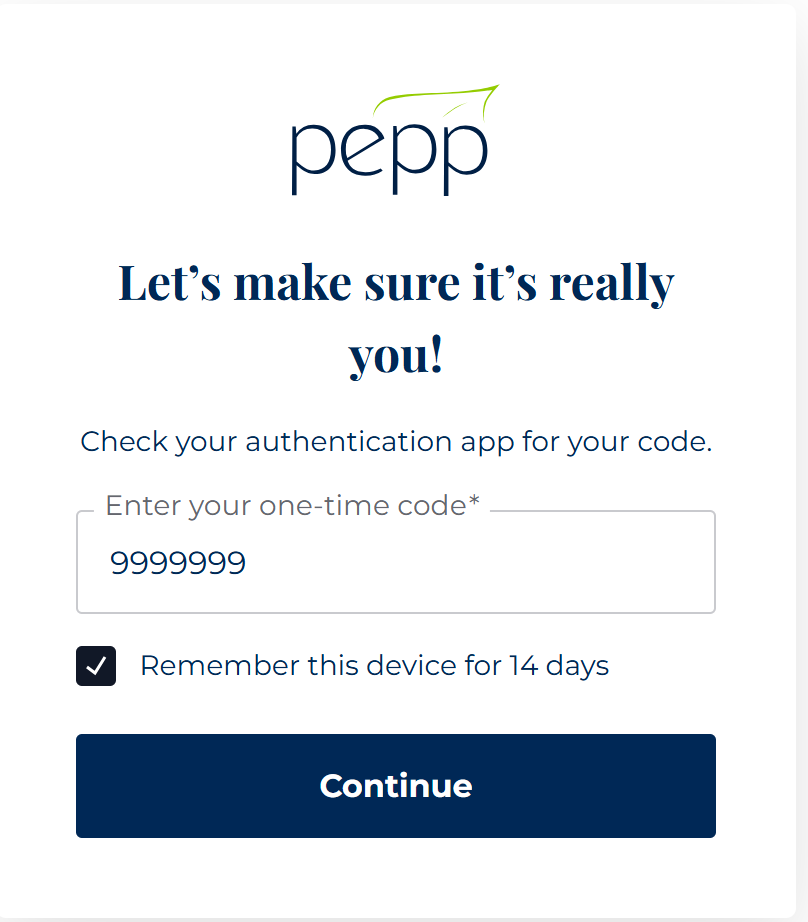
If your authenticator app is showing a 6-digit code, then it worked.
If you are on a device you trust, like your home computer, you can opt to have your device trusted for 14 days and not be asked for a code.
After 14 days, you will be required to enter a 6-digit code when you sign in.
Videos
Setting up Multifactor Authentication (MFA) for a PEPP Employer
This tutorial will walk you through how to set up MFA on your PEPP online employer account, step-by-step.